A Gentle Guide to Statistics in R
(part 1)
Introduction
Jesse Maegan posed the following question on Twitter, and started a great discussion with #RStats users at all points on the R spectrum.


Many people chimed in, bringing up packages lacking detailed vignettes, impact of social groups using other programming languages, difficulty in finding relevant-to-you R examples, needing more guidance on programming vs statistics in university, and many other topics.
Two tweets really stuck out to me, and were really similar to my first needs in R. Multivariate and descriptive statistics on your topic of interest! For many of us in science, means testing via ANOVAs and linear regression/correlation coupled with simple summaries (descriptive statistics) would solve many of our problems.


I have definitely been there, and have yet to find a solid example walking through multivariate ANOVAs, post-hocs, plotting, and descriptive statistics. Basically a full example of a data analysis in R but for academic use.
So I told David I would write a blog post, and here we go!
R/R Studio
I am going to borrow heavily from the fantastic e-book Modern Dive by Chester Ismay and Albert Kim. If you are interested in exploring more into how to use R, their ebook is one of the best and again it’s FREE!
If you need to install R please see their section here on downloading and installing R and R Studio.
Now on to using R Studio! To use a quick phone analogy, R is the computer running your phone, while R Studio is the homescreen. R Studio provides the interface to interact and tell R what to do. R is broken up into 4 main sections, the left side is R Scripts (where you type code) and the R Console, while the right side has the Environment and the Files/Plots/Packages sections.
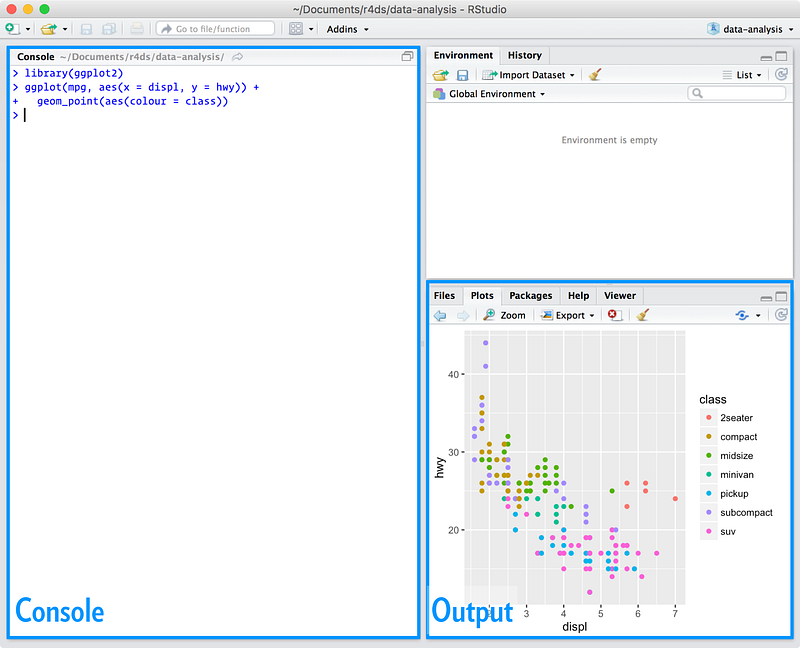
Moving forward with the phone analogy, I’d also like to introduce packages. Packages are similar to apps on your phone. Although your phone/R can do a lot out of the box, apps/packages add function! To install these “apps” in R, we need to first explicitly tell R to install the package!
To get started coding in R, first type `ctrl + shift + N` simultaneously. This will open a new R Script, basically a file where you can save typed R code and your comments about what you’re doing. Alternatively you can click on the top left green ‘+’ and select R Script from the dropdown menu.

Once there you can install the one package we will need for these analyses. Begin by typing the following code into your new R Script, and then clicking ctrl + enter while leaving your cursor on the same line. Whatever the name of the packages, we need to surround it with “ ”
install.packages("tidyverse")
This will install the package of interest onto your computer for the first time. You don’t need to install it again unless you wish to download an updated package in the future.
Whenever you start R Studio up, you need to also load the package. This is the equivalent of opening an app on your phone! It will load the extra features and allow you to call them by typing code.
library("tidyverse")
It is a good idea to load packages at the top of your script/analysis, so it is clear what packages are required! We can also add comments to takes notes about what we are doing and WHY we are doing it! Comments in R can be formed by adding a # in front of your notes. This # tells R to not “read” anything on the same line, preventing it from throwing errors at you when it tries to read your great commentary!
# Adding the hashtag/pound sign tells R to not evaluate this line
Without going into too much detail, the
tidyversepackage gives us an option for elegant descriptive statistics, beautiful publication-grade graphs, and makes our code much more readable!
The next concept I’d like to cover is the assignment operator
<- code="">
This tells R that you are assigning everything on the right to the object on the left. Let’s assign the variable x as 5, y as 6, and then do some basic math.
x <- 5="" br=""> y <- 6="" br=""> x * y
>[1] 30
You can do the same thing in R, and once you run the
x * y code you will see 30 pop up in the output console! Congrats you have written your first code!
We are going to skip quite a bit ahead, and get into the meat of the beginning of the analysis. If you wish to learn more about the basics of R, again I would recommend looking into Modern Dive — An introduction to Statistics in R.
On to part 2!
Comments
Post a Comment